
Home Guides MiniMax H3 Max audio
MiniMax H3 Max audio
MiniMax H3 Max audio
H3 Max Studio · last updated 3 September 2026
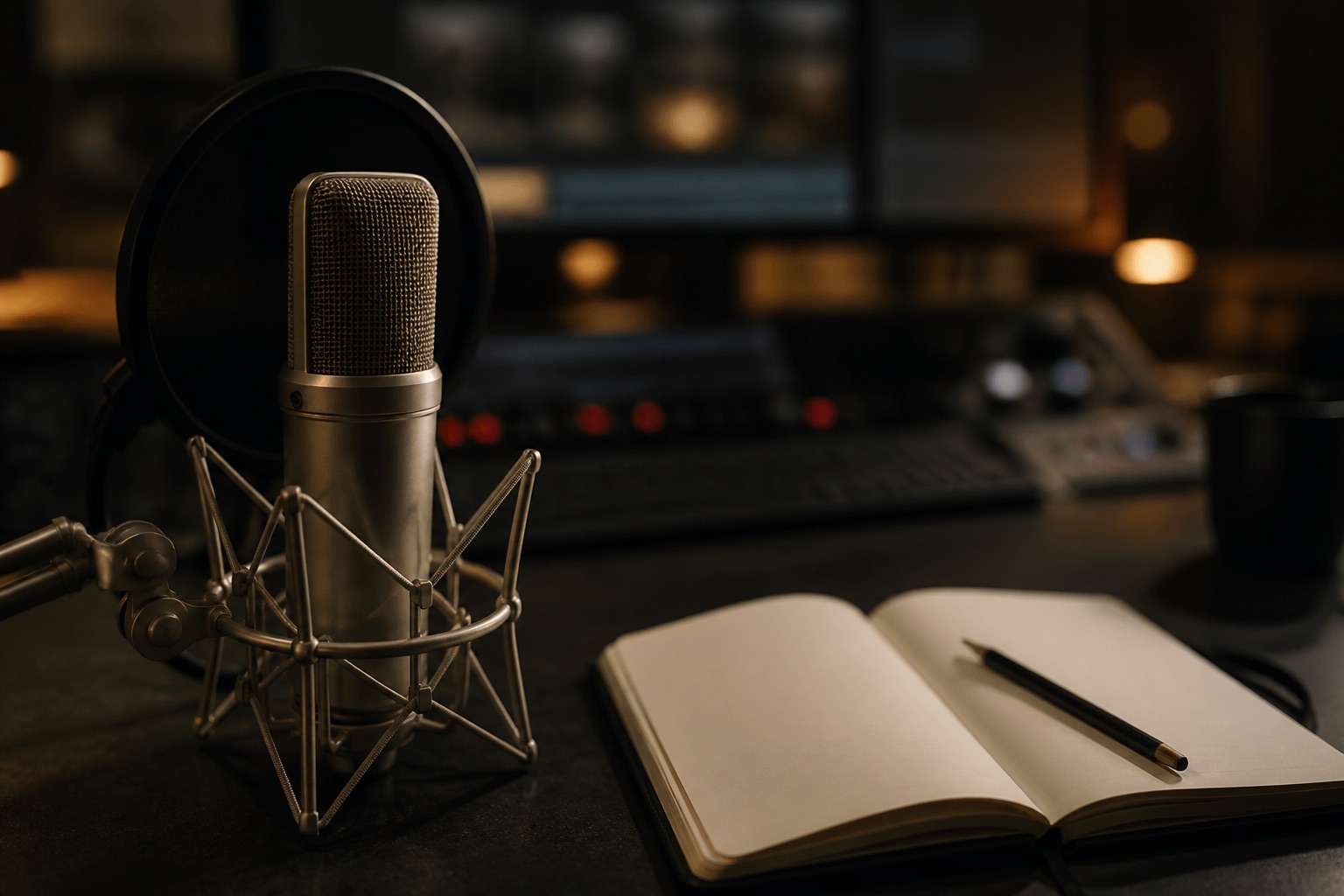
MiniMax H3 Max audio is generated with the picture, not bolted on later. Every clip on this studio is a stereo MP4. You write sound in the same prompt as the shot. Dialogue goes in quotes. A silent room still needs a sentence that says so.
What “native audio” means here
MiniMax H3 Max audio is not a second product. The model writes picture and stereo sound in one pass. You do not buy a soundtrack add-on. You do not pick a stock bed from a menu. You describe the room, the foley, the score, and any spoken line in the prompt. fal returns an MP4 with both tracks already mixed.
That is why the studio preview starts muted. Autoplay with sound is hostile on a marketing page and illegal in some browsers without a gesture. Unmute the player. If you judge a clip on picture alone you will keep a take whose room is empty or whose line is wrong.
This studio is not MiniMax, Hailuo, or fal. We send official fields. We do not promise a film mix, stem exports, or 5.1. What you get is stereo in the same file as the frames.
Write sound as a fourth sentence
A usable prompt has four parts: subject, camera, light, sound. People skip the last one and then complain that Max “has no audio.” The model heard nothing to write.
Name sources the way a sound report would:
- Room: empty warehouse, tiled kitchen, wet street, small booth.
- Foley: glass tap, door latch, fabric, footsteps on stone, aerosol hiss.
- Score: low studio bed, rising engine, one distant bell, no music.
- Dialogue: the exact line in quotes, plus who speaks.
A product-spot ending:
Sound: a single glass tap, then a short aerosol hiss and a low studio bed.
A dialogue ending:
He says, "The ledger was in the coat the whole time." Sound: slow footsteps on wet stone and one distant bell.
A quiet ending:
Sound: almost silent room, only a faint HVAC hum and one clock tick.
“No sound” is weaker than a described quiet. “Cinematic audio” is not a cue.
Dialogue
Put the spoken line in quotation marks. Keep it short. A 5-second clip will not hold a paragraph. A 15-second clip can hold two short lines if you mark time.
0–7s: she looks at the bottle and says, "Leave it." 7–15s: she turns away. Sound: one glass set-down, then a door in another room.
Do not expect karaoke-perfect lip sync on every face. Do not expect a specific actor’s voice unless you have a legal reference and you are in reference-to-video with more than audio. Do not paste a 90-second monologue into a 5-second job.
If the face must match a real person, start from a still you have rights to (image to video) and keep the line short. If the voice must echo a file you recorded, use reference to video and pair that audio with an image or a short clip. Audio cannot be the only R2V file.
Reference audio
Reference to video can take an audio file as one of up to 12 attachments. Use it for a room tone, a short voice, or a motif you own. Rules that matter:
- Pair it with at least one image or video.
- Do not upload a commercial you do not control.
- Do not expect the model to transcribe a long interview and act it out.
- Name the file in the prompt: “Use the room tone from Audio 1.”
Image to video and text to video have no audio-upload field on this studio. Write the line.
How the player treats sound
Homepage and studio samples start muted with an unmute control. Generated previews and workspace history do the same. That is a site rule, not a model setting. Download the MP4 if you need the file in an editor. We do not split stems.
If the preview looks fine and sounds empty, fix the prompt before you change resolution. Resolution does not add a mix. Duration does not add a mix. A longer silent prompt is still silent.
Credits and audio
There is no audio surcharge. You pay 5 credits per second of duration, plus image and reference-video add-ons if you used those modes. Asking for dialogue does not cost extra. Asking for silence does not cost less. Failed jobs refund the reservation when the failure is a platform error.
What MiniMax H3 Max audio will not do
It will not deliver isolated dialogue, music, and foley. It will not match a Spotify track. It will not clear a famous theme. It will not replace a location recordist on a job that needs legal stems. It will not run a different MiniMax speech model unless we later expose one — this page is about the video model’s native stereo.
It will, on a good day, give you a usable bed so a 5-second packshot does not feel like a GIF.
A sound-first loop
- Write the four-part prompt. Make the last sentence a sound report.
- Generate 5 seconds at 768P.
- Unmute immediately. Ignore the picture for one listen.
- If the line is wrong, change only the quoted sentence.
- If the room is wrong, change only the sound sentence.
- Then look at the camera.
Most people reverse that order and burn credits on pictures they never heard.
Sound is written in T2V and I2V. R2V can attach audio only with another file.
Editing after you download
The MP4 is a finished stereo mix. Drop it on a timeline if you need to duck under a VO you recorded later. Do not expect to solo the hiss from the glass tap. If the line is almost right, change the quoted sentence and generate again. That is cheaper than trying to ADR a 5-second generated face.
Keep the download name in your bin so you know which prompt produced it. The workspace history is the studio ledger, not an NLE.
FAQ
Does every MiniMax H3 Max clip include audio?
Yes. The model writes stereo with the picture. Unmute the preview.
How do I add dialogue?
Put the line in quotes in the same prompt. Keep it short enough for the duration you bought.
Can I upload only a voiceover?
Not as the only reference. Pair audio with an image or video in reference-to-video mode, or write the line in text or image mode.
Is there a separate audio credit price?
No. Audio is part of the 5 credits per second duration charge.