
Home Guides MiniMax H3 Max image to video
MiniMax H3 Max image to video
MiniMax H3 Max image to video
H3 Max Studio · last updated 3 September 2026

MiniMax H3 Max image to video starts from a still. The first image is the opening frame. An optional last image is the end keyframe. Aspect follows the first frame. Without a first image, fal treats the job as text to video.
What image to video is for
MiniMax H3 Max image to video exists so a still can own the opening frame. Use it when the bottle, the face, the room, or the type treatment must start from a picture you already have. The model then interpolates motion and writes stereo audio from the prompt. It is not a slideshow. It is not a guarantee that every label stays readable for 15 seconds. It is a keyframe tool.
If you have no still, use text to video. If you have many files and want the model to borrow texture or motion from them, use reference to video. Do not dump six extras into I2V and expect reference-to-video behavior. I2V’s official job is first frame, optional last frame, prompt, duration, resolution, expansion, seed, safety.
First frame
The first image is the opening composition. Lighting, wardrobe, product angle, and negative space should already be correct in that file. A busy collage teaches the model to wander. A clean, well-lit still with one subject teaches it where to stand.
Resolution of the still should be high enough that 768P is not an upscale of a thumbnail. Crop to the ratio you want before you upload. I2V does not offer the T2V aspect dropdown. A 9:16 story starts as a 9:16 still. A 21:9 film still starts as a 21:9 still.
Rights matter. You must own or have a license for the image, including faces, logos, and locations. The Acceptable Use Policy and the Terms both say so. We do not grant MiniMax brand rights because you uploaded a still that happens to include their mark.
Last frame
The last image is the end keyframe. Use it when the shot must land on a specific pose, a cap on a bottle, a title card, or a cleared table. The model interpolates between the two stills. If the first and last frames disagree about the room, the interpolation will invent a compromise you may not like.
You do not need a last frame for every job. A single first frame plus a prompt that names one camera axis is enough for a lot of product work. Add the last frame when the end state is part of the brief, not when you are “being complete.”
Without a first image, fal treats the job as text to video. A last image alone is not a supported I2V setup on the fields we send.
What the prompt does in I2V
The still owns framing. The prompt owns motion and sound. Fighting the still — “now make it a wide aerial” — wastes credits. Write the move that the still can support: a spotlight swing, a slow push-in, mist across a label, a head turn that the last frame confirms.
Sound still belongs in the same box. MiniMax H3 Max image to video generates stereo audio with the picture. If you say nothing about sound, you get a vague bed. If you name a glass tap, a hiss, and a low studio tone, you have something to edit.
Example:
Keep the bottle locked in frame. A warm spotlight swings across the label and catches a gold mist. Sound: a single glass tap, then a short aerosol hiss and a low studio bed.
That prompt assumes the first frame already is the bottle on slate.
Credits
Duration still costs 5 credits per second. The first four images are included in that reservation. Extra images after four cost 10 credits each. I2V usually uses one or two images, so most jobs are duration only: 25, 50, or 75 credits.
A last frame counts as an image. Two stills is not an extra-image surcharge. The surcharge starts after four.
Failed jobs refund the reserved amount. A still that the safety stack rejects is not the same as a platform failure. Read the error on the workspace card.
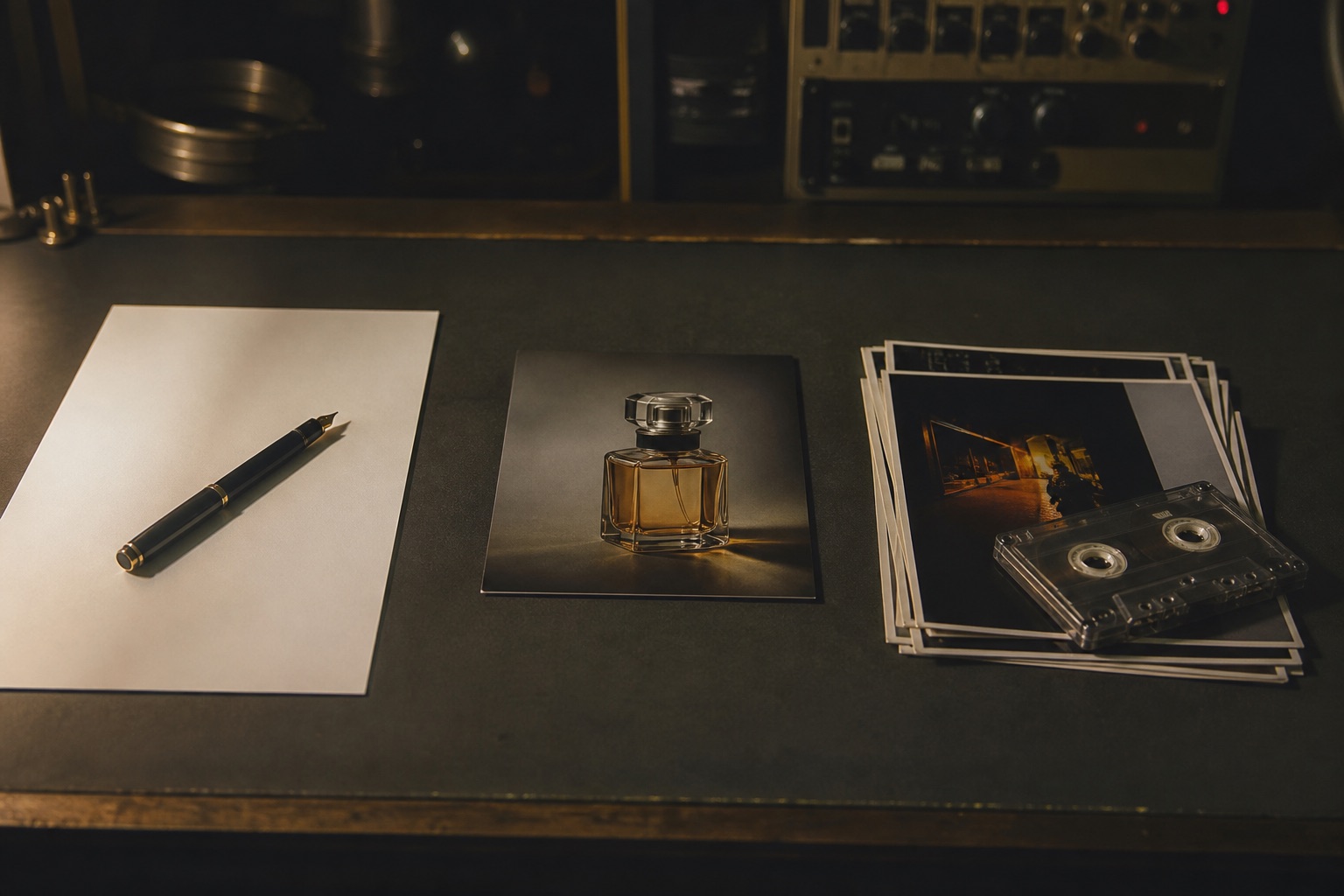
I2V is the middle object: one still, not a reference pile.
How to run MiniMax H3 Max image to video
- Switch the studio to Image.
- Drop a first-frame still. Optionally add a last-frame still.
- Prompt the motion, camera, and sound. Do not fight the still’s framing.
- Pick 5 to 15 seconds and 480P or 768P.
- Generate, unmute, then download.
Start at 5 seconds. If the interpolation already breaks the label, a 15-second take will not heal it. Fix the still or drop the last frame.
Common I2V failures
The still is a screenshot of a UI. The model will invent buttons.
The still is a face you do not have rights to. That is an Acceptable Use problem, not a prompting problem.
The first and last frames are different rooms. The path between them will look like a dissolve through fog.
The prompt describes a new wardrobe. The still already dressed the subject. Pick one.
The user expected 9:16 from a 16:9 JPEG. Crop first.
I2V versus reference to video
I2V is two keyframes and a prompt. Reference to video is up to 12 files, including short video and audio, with a combined video limit and an extra 45-credit charge per reference video. If you are holding a 3-second product turn you want echoed, that is R2V. If you are holding a packshot you want to start on, that is I2V.
Do not attach reference audio in I2V. It is not an I2V field on this studio. Write the line.
FAQ
Does MiniMax H3 Max image to video keep my composition?
It follows the first frame. Strong, well-lit stills hold better than busy collages.
Can I set 9:16 on I2V?
Not as a separate field. Crop the first image to the ratio you want.
What if I skip the first image?
fal treats the job as text to video.
Does a last frame cost extra?
It counts as an image. The extra-image fee starts after four images, so a first-plus-last job is still billed on duration at 5 credits per second.